Can you have secret apps on Android?
Yes—you can have “secret” (hidden) apps on Android, but in most cases they’re not truly invisible. They’re usually hidden from the home screen/app drawer, protected behind a lock, or installed under a separate profile. With the right checks, a phone owner (or someone with sufficient access) can typically still find evidence of them.
Below is what “secret apps” can mean, how they’re commonly hidden, and how to locate them—plus a practical, privacy-first approach if you’re hiding apps for legitimate reasons.
What “secret apps” usually means (and what it doesn’t)
On Android, “secret app” typically falls into one of these categories:
- Hidden icon: The app is installed but not visible in the launcher (home screen/app drawer).
- Locked app: The app opens only with a PIN/password/biometric prompt.
- Separate space: The app exists inside a different container (e.g., a work profile, private space, or OEM “secure folder”).
- Disguised app: The app uses an innocent-looking name/icon or “vault” behavior.
What it usually doesn’t mean: - Undetectable. If the app is installed, Android still tracks it in system-level places (like app lists, permissions, or storage) unless the device is heavily modified.
Common ways apps get hidden on Android
Because Android devices vary by manufacturer, the exact feature names differ—but these are the most common patterns.
1) Built-in launcher hiding (OEM features)
Some phones let you hide apps from the app drawer via launcher settings. The app remains installed and can often still be found in: - Settings → Apps (full list) - Search within Settings - Play Store app management areas
2) “Secure Folder” / “Private Space” style containers
Many Android variants offer a protected area where you can keep copies of apps or separate sign-ins. This is often the most “secret-like” behavior because: - Apps can be separated from the main profile - Notifications can be minimized/hidden - Content is gated behind a lock
3) Work Profile (Android enterprise feature)
A work profile creates a parallel set of apps/data (often with a small “briefcase” badge on icons). If you’re using a managed device, you might have both personal and work versions of apps.
4) Secondary user accounts (multi-user)
Some Android devices support multiple users. An app installed under another user may not appear in your current user’s launcher.
5) App locking apps
“App Lock” tools don’t always hide icons, but they can make an app feel secret by requiring authentication to open.
6) Vault/Calculator-style apps (disguised containers)
Some apps present themselves as a calculator/gallery utility while storing protected content. These can be used for legitimate privacy (e.g., sensitive documents) but are also commonly associated with misuse.
How to find hidden apps (the practical checklist)
If you’re trying to locate apps on a device you own (or manage for family/IT), these checks catch most “secret” setups.
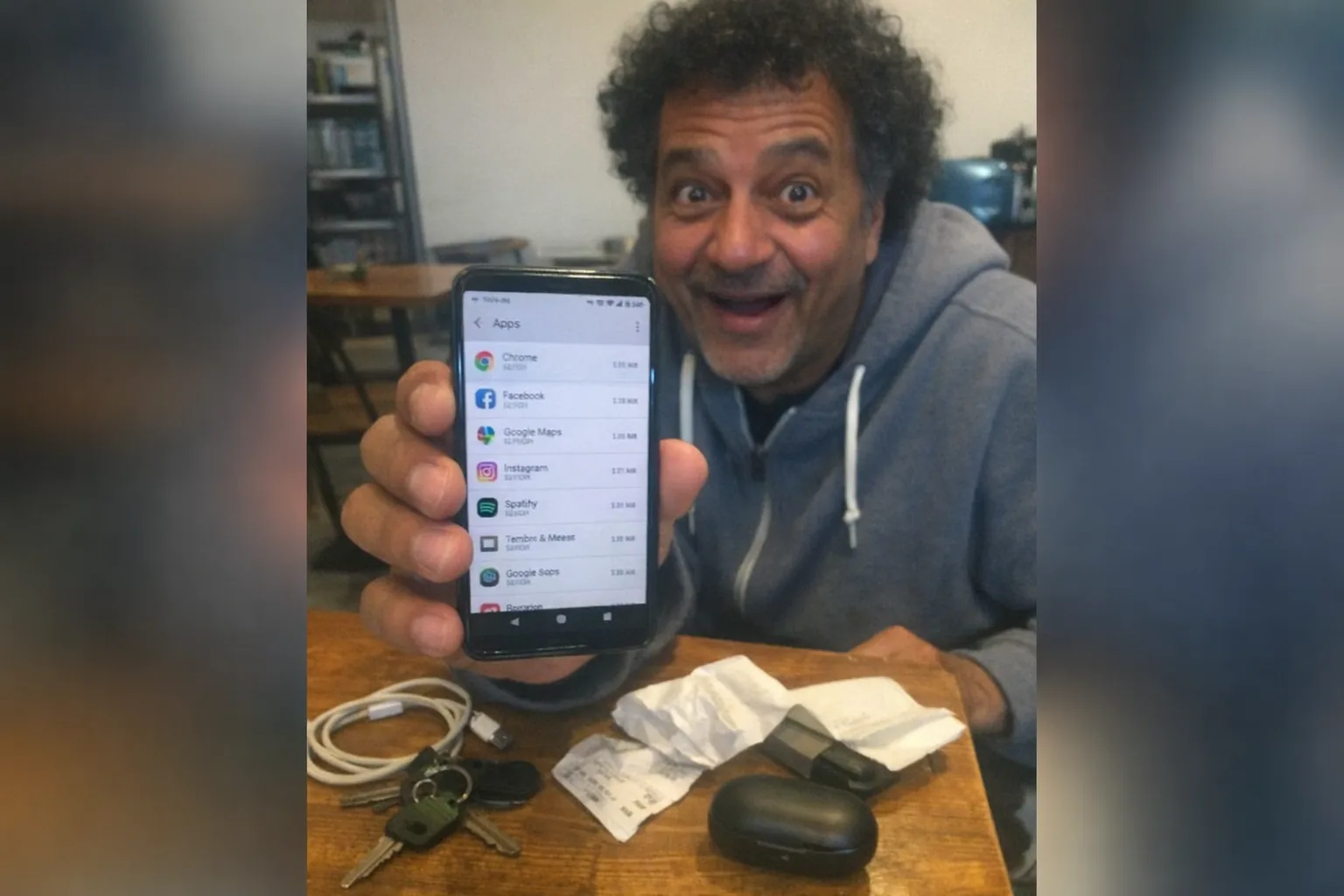
1) Check the full installed-app list
- Open Settings → Apps (or Apps & notifications)
- Sort by All apps and review unfamiliar names
Tip: Some hidden apps use generic names. Tap each suspicious entry and check: - Storage usage - Permissions (camera, microphone, files, accessibility) - Notifications settings
2) Search Settings for app names and permissions
Use the Settings search bar to look for: - “Device admin apps” / “Device administrators” - “Accessibility” (some disguised apps request accessibility access) - “Install unknown apps” (sideload permissions)
3) Check profiles and spaces
Look for: - Work profile toggle or “Work” tab in the app drawer - Users / Multiple users - OEM Secure Folder/Private Space features
4) Review Play Store + install history signals
In the Play Store, you can often find: - Installed apps list - Previously installed apps (depending on account settings)
5) Look at battery and data usage
Hidden apps still use resources. - Battery usage by app - Mobile/Wi‑Fi data usage by app
6) Check notification history (if enabled)
Even “quiet” apps sometimes leak evidence via notification logs.
Are secret apps “bad”? Not necessarily.
There are legitimate reasons to hide or lock apps: - Protecting private medical/financial information - Keeping work apps separated - Reducing distractions - Preventing kids from opening certain apps
But secrecy can also cross into harmful territory if it’s used for deception, stalking, or hiding unsafe behavior. A good rule: privacy protects a person; secrecy often hides actions from a person. If you’re sharing a device with a partner or family, consider agreeing on boundaries rather than escalating into an arms race of hidden tools.
Privacy-first approach for sensitive adult tech (without going “cloak and dagger”)
If you’re managing sensitive apps—like dating, health, or adult-tech companion apps—aim for clear, secure, and ethical privacy controls:
- Use screen lock + biometric
- Turn on 2FA for accounts
- Prefer first-party privacy features (profiles/private spaces) over sketchy vault apps
- Audit app permissions regularly
- Keep device OS updated
If you’re exploring adult tech, you may also care about discreet ownership and personal boundaries without needing “spyware-ish” hiding tricks. For example, Orifice.ai offers an interactive adult toy/sex robot priced at $669.90, featuring interactive penetration depth detection—the kind of product where users often want straightforward privacy controls (secure phone access, sensible notifications) rather than risky “secret app” behavior.
Bottom line
Yes, you can have “secret apps” on Android—most commonly by hiding icons, locking apps, or using separate profiles/secure spaces. But they’re rarely truly invisible if someone checks system app lists, profiles, battery/data usage, and permissions.
If you tell me your phone model (Samsung, Pixel, OnePlus, etc.) and Android version, I can point you to the exact menus where hiding/private-space features usually live.