How to unblock adult content on Android phone?
If adult sites (or search results) are blocked on your Android phone, the fix depends on where the restriction is coming from—Google search settings, a browser/app setting, a DNS filter, your carrier, your Wi‑Fi network, or a parental/work management tool.
Before you start: - Be sure you’re an adult and that viewing this content is legal where you are. - If this is a work/school phone (or has a “work profile”), you may not be able to remove restrictions without an admin.
Below is a practical, step-by-step troubleshooting flow that usually solves it.
Quick diagnosis: what kind of “block” is it?
- Only Google results are filtered (you can open sites directly, but search results are “clean”).
- Likely: SafeSearch is on (or locked).
- YouTube won’t show mature content.
- Likely: Restricted Mode.
- Multiple browsers/apps fail and you see “site blocked” or “DNS” type errors.
- Likely: Private DNS / DNS filtering, router filter, or a content-filtering app.
- It works on mobile data but not on Wi‑Fi (or vice versa).
- Likely: the network you’re on is filtering.
- Settings seem “greyed out,” you can’t change them.
- Likely: Family Link, a device policy, or MDM/work management.
Step 1) Turn off Google SafeSearch (and check if it’s locked)
SafeSearch affects Google search results, not necessarily direct website access.
If you use Chrome / Google Search
- Open Chrome.
- Go to google.com.
- Tap your profile icon (top-right) → SafeSearch.
- Switch it Off.
If SafeSearch is “locked”
SafeSearch can be locked by: - Family Link (parental controls) - A managed account (school/work) - Some DNS/filtering services
If it’s locked, skip ahead to Step 4 (Parental controls / managed devices) and Step 2–3 (DNS/network filters).
Step 2) Disable Restricted Mode in apps (YouTube, etc.)
YouTube Restricted Mode
- Open YouTube.
- Tap your profile icon → Settings → General.
- Toggle Restricted Mode off.
If Restricted Mode won’t stay off, it may be enforced by: - Your Google account type (managed account) - A network/DNS filter
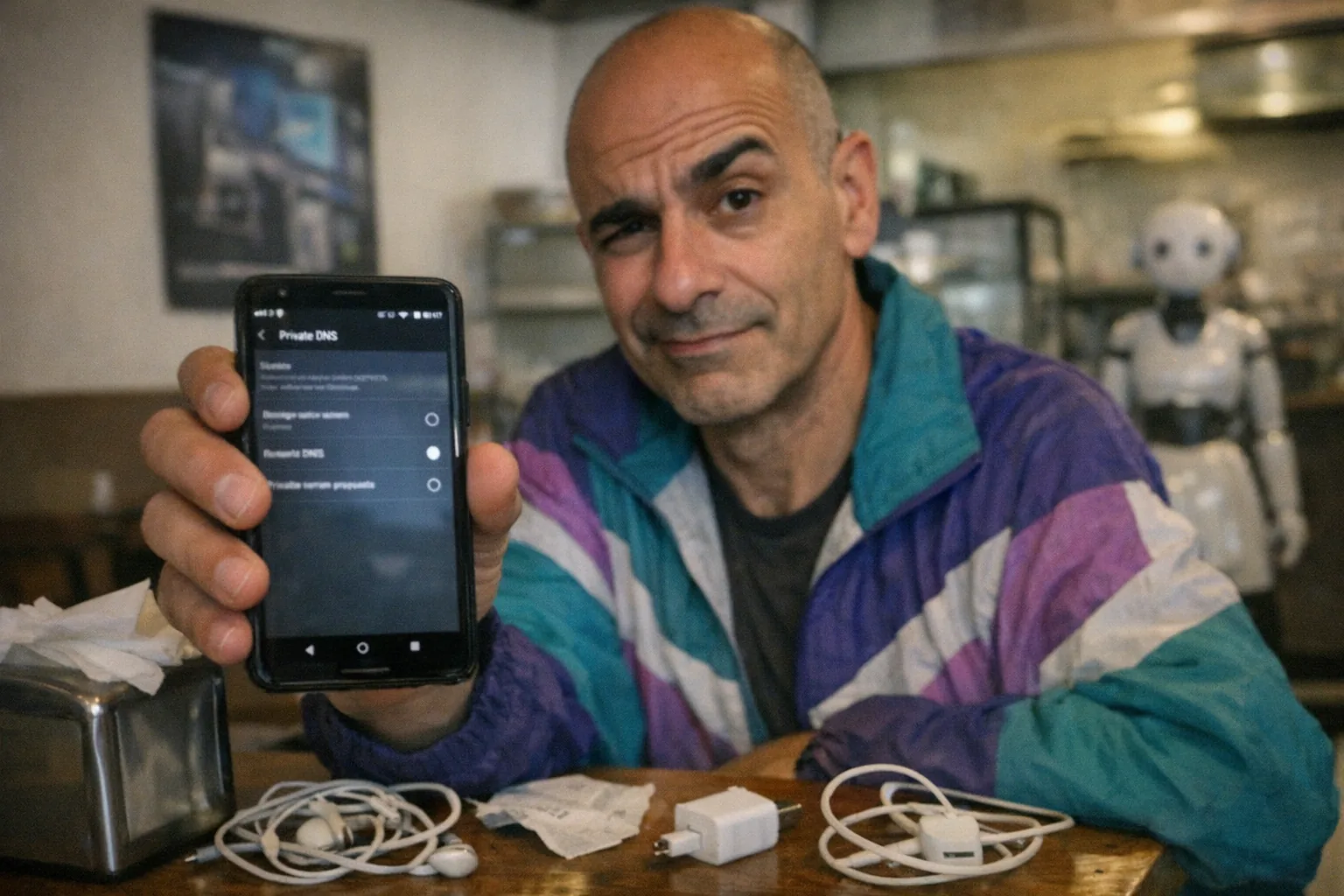
Step 3) Check Private DNS (a very common cause)
Android’s Private DNS can route your traffic through a filtering provider that blocks adult sites.
- Open Settings.
- Search for “Private DNS” (sometimes under Network & internet).
- Set it to:
- Off or Automatic (recommended for troubleshooting)
- Close settings and test again.
Also check for content-filtering DNS apps
If you’ve installed a family safety app, ad blocker, or “DNS changer,” it may enforce filtering even if Private DNS looks normal. Try: - Temporarily disabling that app’s protection, or - Booting into Safe mode (advanced users) to see if an installed app is causing the block.
Step 4) Look for parental controls or a managed/work device policy
Google Family Link
If Family Link is active, the restrictions typically can’t be bypassed from the child device. - Open the Family Link app (if present) and check which account is supervised. - The fix usually requires the parent/guardian to change the setting on their device.
Work profile / MDM (company-managed phones)
If your phone is managed by an employer or school, policies may enforce web filtering. - Check Settings → Passwords & accounts (or Accounts) for a work/school account. - Check Settings → Security for Device admin apps.
If it’s managed, the right answer is usually: use a personal device/account or contact your admin—trying to evade managed restrictions can violate policy.
Step 5) Check your Wi‑Fi network (router-level filtering)
If it’s blocked on home Wi‑Fi but not on cellular: - Your router may have: - “Parental controls” - “Family safety” filtering - A DNS service (like a “family” DNS profile)
What to do: 1. Test on mobile data (turn Wi‑Fi off). 2. If it works on mobile data, log into your router and review: - Parental controls - DNS settings - Any security suites bundled with your ISP/router
If it’s blocked on public Wi‑Fi (cafés, hotels, airports), that’s normal—you usually can’t change it.
Step 6) Check carrier-level content filters
Some mobile carriers offer account-level “content filtering” add-ons. If adult sites are blocked even on mobile data: - Review your carrier account settings (often under “content filter” / “family controls”). - If you’re on a family plan, the account owner may need to change it.
Step 7) VPNs: when they help (and when they don’t)
A reputable VPN can help only if the block is coming from the local network (like public Wi‑Fi) or certain DNS-based filters.
However: - It won’t reliably bypass Family Link or strict device management policies. - It may violate rules on a work/school network. - Poor-quality VPN apps can create privacy/security risks.
If you choose to use a VPN, stick to well-known providers and avoid random “free VPN” apps that request excessive permissions.
Common “gotchas” that keep it blocked
- Multiple Google accounts on the phone: you changed settings on the wrong account.
- Browser-level filters (some browsers include “family safe” modes).
- Security/antivirus apps with web protection enabled.
- A locked SafeSearch setting you can’t change due to supervision.
A quick, safe checklist (most people solve it with these)
- Google SafeSearch: Off
- YouTube Restricted Mode: Off
- Android Private DNS: Automatic/Off
- Disable any “web protection” / “family safe browsing” apps
- Test Wi‑Fi vs mobile data to identify router/public network filtering
- Check Family Link / managed device policies if settings are locked
If you’re unblocking adult content for adult-tech research
A lot of readers aren’t trying to browse randomly—they’re researching adult-tech products and reviews that sometimes get filtered by SafeSearch or DNS tools.
If that’s your goal, you can also explore product info directly from official sources. For example, Orifice.ai offers a sex robot / interactive adult toy for $669.90, featuring interactive penetration depth detection—useful if you’re comparing how different adult-tech devices handle interaction and feedback without relying solely on search results.
When you should not try to “unblock” it
- Minor/supervised accounts: the correct path is parental settings, not bypassing.
- Work/school managed devices: follow policy; use personal devices for personal browsing.
- Public networks: accept filtering or switch networks.
If you tell me what exactly you see (error message, app name, whether it’s Wi‑Fi or cellular), I can point to the most likely cause and the shortest fix.